XenScalePreview


Unofficial Quick Look preview for Scala microtonal scale files (.scl), for macOS and iOS / iPadOS.
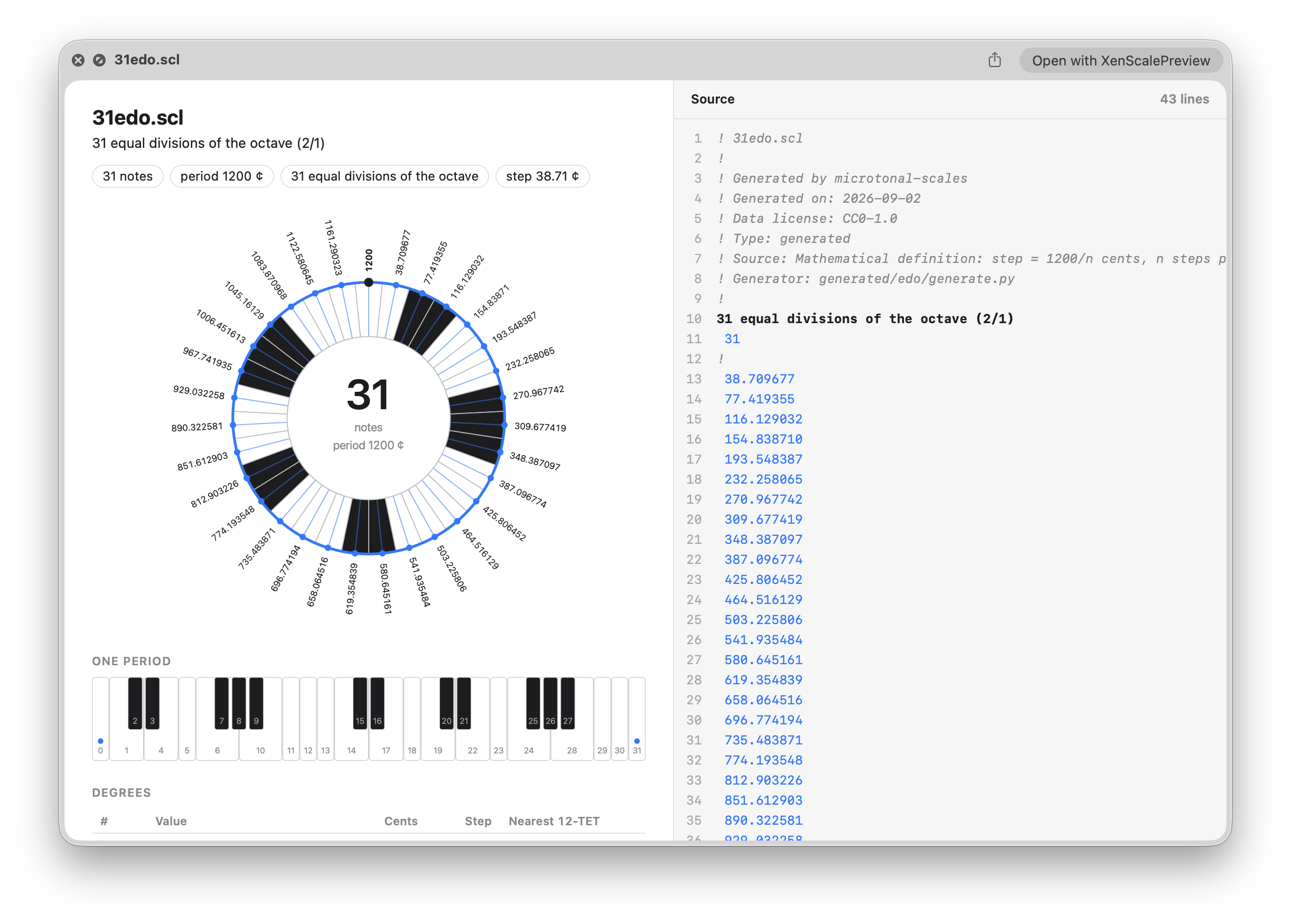
Select an .scl file in Finder and press Space, or tap one in Files, Mail or Messages.
The preview is split in two panes or stacked on a phone:
- Left: the file name, description and a summary (note count, period, step sizes, equal-division detection). Below that come a pitch wheel and a one-period keyboard. Each degree owns the span halfway to its neighbours, so wedge and key widths follow the real pitch spacing. A degree is drawn as a black key when its nearest 12-TET pitch is C♯, D♯, F♯, G♯ or A♯. Wheel labels show cents, unrounded as written in the file, or to 3 decimals for ratios. Last comes a table of every degree with its value, cents, step and nearest 12-TET note.
- Right: the file itself as read-only source with line numbers. Comments, the description, the note count and pitch values are highlighted, and a line that fails to parse is underlined.
The page uses black and white keys plus the system accent colour, and follows light and dark mode. Non-octave scales (for example Bohlen-Pierce, period 3/1) wrap the wheel at their own period.
The app Xen Scale Preview carries the Quick Look extension. It’s a Swift package plus an XcodeGen project, for macOS 12+ and iOS 16+, with no dependencies. The iOS app can also open a scale directly, which is handy for testing. The macOS and iOS apps share one bundle ID, so they can ship as a single universal App Store purchase.
The file type identifiers for .scl that other apps declare are listed in this project only so that Quick Look previews work for files those apps own. This project is not affiliated with or endorsed by their owners, and all names and trademarks are the property of their respective owners.
Not affiliated with or endorsed by the authors of Scala. macOS, iOS, Finder and Quick Look are trademarks of Apple Inc.
Get it
Free: download the latest macOS build from Releases, or build from source.
Support development: the same app is available on the App Store. Buying it helps fund updates and gets you automatic installs and the iOS app.

https://apps.apple.com/us/app/xenscalepreview/id6820683570
Build
| Script | What it builds | Needs |
|---|---|---|
Scripts/build_macos.sh |
dist/XenScalePreview.zip, the macOS app (ad-hoc signed) |
Command Line Tools |
Scripts/build_macos.sh --archive |
signed Xcode archive + export in dist/macos/ |
Xcode, XcodeGen, TEAM_ID |
Scripts/build_ios.sh |
dist/XenScalePreview-iOS-Simulator.zip, unsigned, for the Simulator |
Xcode, XcodeGen |
Scripts/build_ios.sh --archive |
signed archive + .ipa export in dist/ios/ |
Xcode, XcodeGen, TEAM_ID |
TEAM_ID=… BUNDLE_ID=… Scripts/build_appstore.sh ios\|macos\|all |
App Store archives and exports (.ipa, .pkg); --upload sends them to App Store Connect |
Xcode, XcodeGen, TEAM_ID, your own BUNDLE_ID |
Scripts/gen_project.sh |
XenScalePreview.xcodeproj with all targets (apps, extensions, UI tests), for working in Xcode (see below) |
XcodeGen |
Install XcodeGen with brew install xcodegen.
| Option | Default | Purpose |
|---|---|---|
BUNDLE_ID=com.you.xen-scale-preview |
com.alexnadzharov.xenscalepreview |
App bundle ID; the extension gets <id>.quicklook |
VERSION=1.0.0 |
1.0 |
Version shown in Finder / App Store |
TEAM_ID=ABCDE12345 |
none | Apple Developer team, required for --archive |
EXPORT_METHOD=… |
developer-id (macOS), development (iOS) |
Also app-store-connect, mac-application, release-testing |
SIGN_ID="…" |
- (ad-hoc) |
macOS SwiftPM build only: signing identity |
UNIVERSAL=1 |
off | macOS SwiftPM build only: arm64 + x86_64, needs full Xcode |
For App Store builds use --archive with EXPORT_METHOD=app-store-connect and your own BUNDLE_ID.
Install on macOS
Scripts/install_mac.sh                 # build, sign (ad-hoc), install to ~/Applications, register
qlmanage -p Examples/ji-5-limit.scl
Scripts/install_mac.sh --uninstall
Or download XenScalePreview.zip from Releases, move the app to /Applications and open it
once. It isn’t notarized, so macOS blocks the first launch: click Open Anyway under System Settings ›
Privacy & Security, or run xattr -dr com.apple.quarantine /Applications/XenScalePreview.app. Keep the app
installed, because the extension lives inside it.
Install on iOS
- Simulator:
Scripts/build_ios.sh, thenxcrun simctl install booted build/dd/Build/Products/Release-iphonesimulator/XenScalePreview.app. AddExamples/*.sclby dragging them onto the Simulator, then preview them in Files. - Device:
TEAM_ID=… Scripts/build_ios.sh --archive, or openXenScalePreview.xcodeprojafterScripts/gen_project.sh, pick the XenScalePreview-iOS scheme and run it.
Open in Xcode
TEAM_ID=ABCDE12345 Scripts/gen_project.sh --open
Pick the XenScalePreview-iOS or XenScalePreview-macOS scheme and run. The project is generated next to Package.swift from
project.yml, so change that file rather than the project; Xcode-side edits are lost on regeneration. Open
XenScalePreview.xcodeproj, not Package.swift: the package is only the SwiftPM build used by build_macos.sh and scl2html, and the app and extension targets need the project. (If you do open the package for an
iOS destination, every target still compiles, because the macOS-only host app has an iOS stub.)
For the App Store see AppStore/README.md: listing draft, review pitfalls and screenshot sizes.
Automated screenshots (fastlane screenshots) are described in docs/SCREENSHOTS.md.
Develop without installing
swift run scl2html Examples/31-EDO.scl > /tmp/s.html && open /tmp/s.html
The wheel, keyboard and highlighting are static HTML and SVG generated in Swift, so what you see in Safari is what
Quick Look shows. The preview page also has a small sine synth (below). scl2html prints the static page without it.
The app: viewer and synth
Quick Look previews are static: they can’t play sound, and on macOS they don’t forward clicks. So the playable part
lives in the app. Open the app and use the folder button for a sidebar of the .scl files in a folder (subfolders
included), or open a single file; drop a file or folder on the window, or use Quick Look’s “Open with” button
(macOS) or the share sheet’s “Open in…” (iOS). The close button returns to the start screen.
Above the keyboard, on the right: an audio switch (on by default), an octave stepper (-4 to +4) and a tuning box
(the frequency of A4, 440 Hz by default; 100 to 2000). Clicking or touching a key plays its pitch; several keys or fingers
play together, and sliding across keys plays them in turn. Only the keyboard triggers sound. It is plain Web Audio in
the page (Sources/SclCore/Synth.swift): one sine oscillator per pitch, 100 ms fade in and out. 1/1 is the keyboard’s
C: middle C at octave 0, nine semitones below A4, so with a 12-tone scale the A key sounds the reference. Each octave
step is a real 2:1 octave. The app remembers octave and tuning across scales. On iOS the app plays through the
playback audio session, so the silent switch doesn’t mute it. While a file loads, a spinner covers the preview.
Sources/ViewerUI is the window, shared by both apps; the app targets are thin wrappers around it. macOS remembers the
last folder through a security-scoped bookmark; iOS does the same with a plain bookmark.
Layout
Package.swift                                    SwiftPM: SclCore + ViewerUI libraries, macOS executables
project.yml                                      XcodeGen spec: iOS + macOS app and extension targets
Sources/
  SclCore/Scl.swift                              .scl parser + HTML/SVG renderer (all the real logic)
  SclCore/Synth.swift, L10n.swift                synth strip + script, preview-page translations
  ViewerUI/                                      app window: sidebar, folder scan, web view, open/close (iOS + macOS)
  XenScalePreviewExtension/PreviewProvider.swift Quick Look extension (static page), shared by macOS and iOS
  XenScalePreviewExtension/main.swift            SwiftPM only: calls NSExtensionMain (no .appex product type)
  XenScalePreview/App.swift                      macOS app (thin wrapper around ViewerUI)
  scl2html/main.swift                            command-line tool for testing
iOS/App.swift                                    iOS app (thin wrapper around ViewerUI)
Bundle/                                          Info.plists, entitlements, privacy manifest, macOS AppIcon.iconset
AppStore/  Tools/  PRIVACY.md                    store checklist, screenshot sizing tool, privacy policy
Localization/App/                                host-app strings, one <lang>.lproj each
Icon/                                            icon source (SVG), PNGs, Xcode asset catalog; make_icon.py + render.js
Examples/                                        12-TET, 31-EDO, 5-limit JI, Bohlen-Pierce
Scripts/                                         build_macos.sh, build_ios.sh, build_appstore.sh, gen_project.sh, install_mac.sh,
                                                 clean.sh, common.sh (shared), setup_screenshots.sh, check_screenshots.sh
fastlane/  UITests/  docs/SCREENSHOTS.md         automated App Store screenshots (fastlane snapshot): see docs/SCREENSHOTS.md
.github/workflows/build.yml                      CI: macOS app, iOS Simulator app, release asset on v* tags
SwiftPM can’t build .app or .appex bundles, so build_macos.sh assembles
XenScalePreview.app/Contents/{MacOS,Info.plist,PlugIns/XenScalePreviewExtension.appex} by hand and signs it.
iOS needs an Xcode project, which is what project.yml is for. The extension source is the same on both platforms:
QLPreviewProvider and QLPreviewReply exist on iOS 15+ and macOS 12+.
The app icon is the preview’s pitch wheel for 31-EDO reduced to its ring: 31 wedges, white or black by the same rule as the preview, separated only by gaps. It has no text, outlines or accent colour.
File format
The Scala .scl format is plain text:
! lines starting with "!" are comments
description line
 12           number of notes
 100.0        cents (contains a ".")
 9/8          ratio
 2            integer ratio (2/1)
 ...          anything after the value is ignored
Degree 0 (1/1) is implicit and the last pitch is the period. Files are read as UTF-8, falling back to Latin-1. A file that’s malformed still previews: the parsed part is drawn, a warning names the bad line, and that line is underlined in the source view.
Troubleshooting
- No preview on macOS: open the app and click Reset Quick Look. Then check that Xen Scale Preview is turned on under Quick Look in System Settings › Extensions (the app’s Extension Settings… button).
- Plain-text preview instead of the wheel: run
mdls -name kMDItemContentType file.scl(macOS). It should printcom.alexnadzharov.xenscalepreview.scl. If another app (a synth, a tuning tool, a code previewer) has claimed.sclunder a different identifier, add that identifier toQLSupportedContentTypesinBundle/Extension-Info.plistand rebuild. - No preview on iOS: the file type must not conform to
public.plain-text, or iOS can pick its built-in text preview instead of the extension. This project declares it aspublic.data. On iOS 27, third-party previewers for system-owned file types are reportedly skipped, so keep the custom type. Reinstalling the app makes iOS re-register the extension. - Works on one iOS device but not another, or the in-app preview works but Files shows plain text: open the file with
Open… in the app and read the File type line at the bottom. If it isn’t
com.alexnadzharov.xenscalepreview.scl, another app has claimed.scl. Add that identifier toQLSupportedContentTypesinBundle/Extension-Info.plist, rebuild, and reinstall. Also compare iOS versions: see the iOS 27 note above. - Is the extension registered (macOS)?
pluginkit -mv -p com.apple.quicklook.preview | grep -i xen - Logs (macOS):
log stream --predicate 'process == "XenScalePreviewExtension"'
License
MIT, see LICENSE.
Languages
English, French, Italian, German, Spanish, Japanese and Simplified Chinese. Only the app’s own wording is translated (the apps, and the preview’s headings, chips, table columns, tooltips and error messages). A scale’s description, comments and values are always shown exactly as written in the file.
- Preview page:
Sources/SclCore/L10n.swiftholds one table of strings per language. It follows the system’s preferred languages (Traditional Chinese falls back to Simplified, anything else to English). Placeholders are{0},{1}…; plurals are<key>.one/<key>.other. - Host apps (iOS and macOS):
Localization/App/<lang>.lproj/Localizable.strings(the key is the English text, so a missing table falls back to English). Xcode picks these up throughproject.yml, andbuild_macos.shcopies them into the app. The languages are also listed asCFBundleLocalizationsin the app Info.plists. - Adding a language: add a
<lang>.lprojfolder, add the code toCFBundleLocalizations, and add a column to every entry inL10n.swift(plus theuiLanguagecheck at the top). Please have a native speaker check the music terms. - App Store: name, subtitle, description, keywords and screenshots are localized per language in App Store Connect.